
AI-Led Auto Purchase Entry
Invoice Scanning Software
Scan Bills and Update Stock Automatically. With Vyapar’s invoice scanning software, you can upload a supplier’s bill as a PDF or image and let the app read the details for you.
Purchase Bill Scanning
Automatic Purchase Entry
Stock Updates with OCR
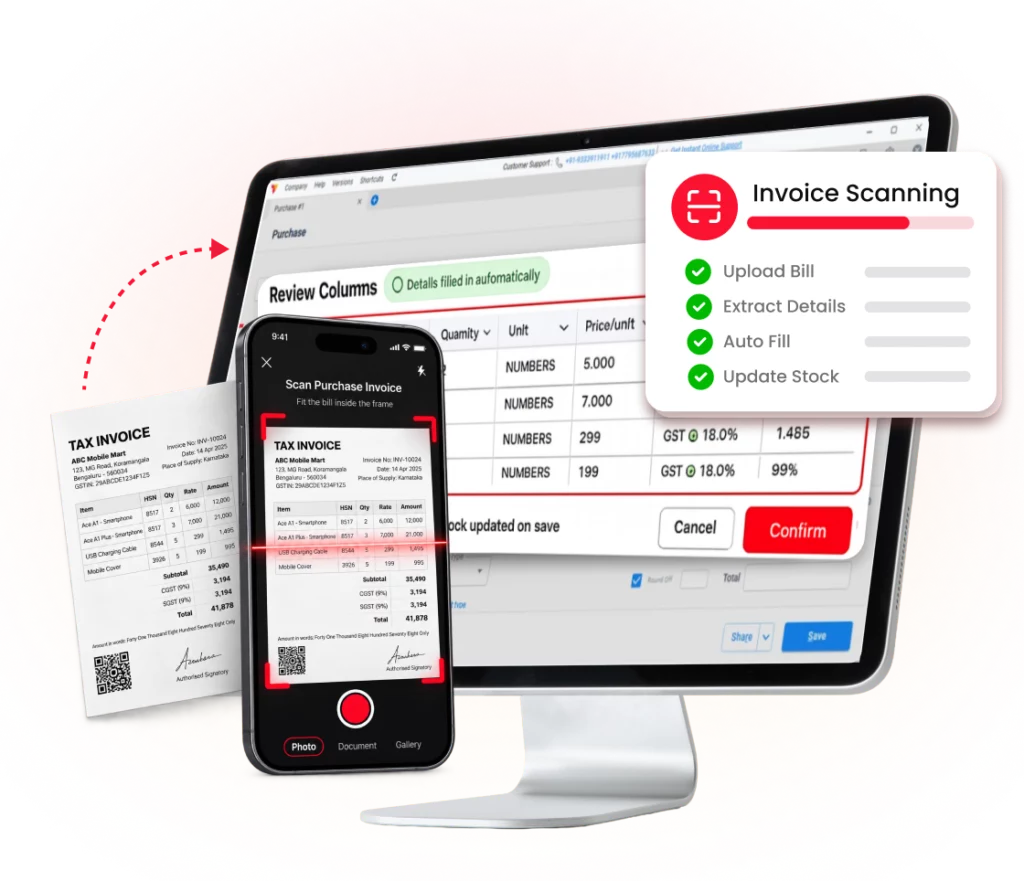
What Is Vyapar’s Invoice Scanning Software?
With Vyapar’s invoice scanning software, you can convert supplier bills into purchase entries without typing every detail manually. Upload a bill in PDF or image format, or use your phone to upload a photo. Vyapar’s AI bill scanner reads the bill details and automatically fills in the purchase entry for you to review.
It can capture available details such as item names, quantities, prices, supplier information, invoice dates, HSN codes, and GST details. Review the information, correct any errors, and save the purchase entry. Vyapar then updates your stock automatically.
Why Use Vyapar’s Purchase Bill Scanner?
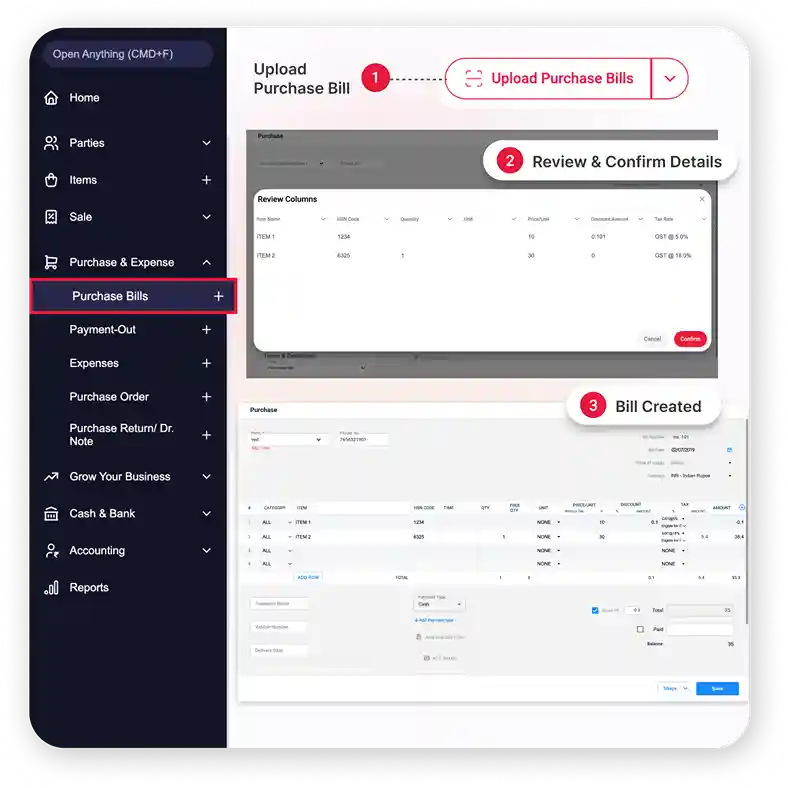
Save Time with AI-Powered Bill Scanning
Vyapar’s AI-enabled bill scanning reads details from supplier bills, such as item names, quantities, prices, and taxes, and automatically fills in the purchase entry. This reduces manual typing and helps you record purchases faster.
- Auto-Fill Purchase Entries: Scan a supplier bill to automatically fill in the available purchase details.
- Quick Bill Review: Upload a PDF or a photo of a printed bill, check the extracted details, and correct any errors before saving.
- Less Manual Work: Record purchase bills faster without entering every item and amount yourself.
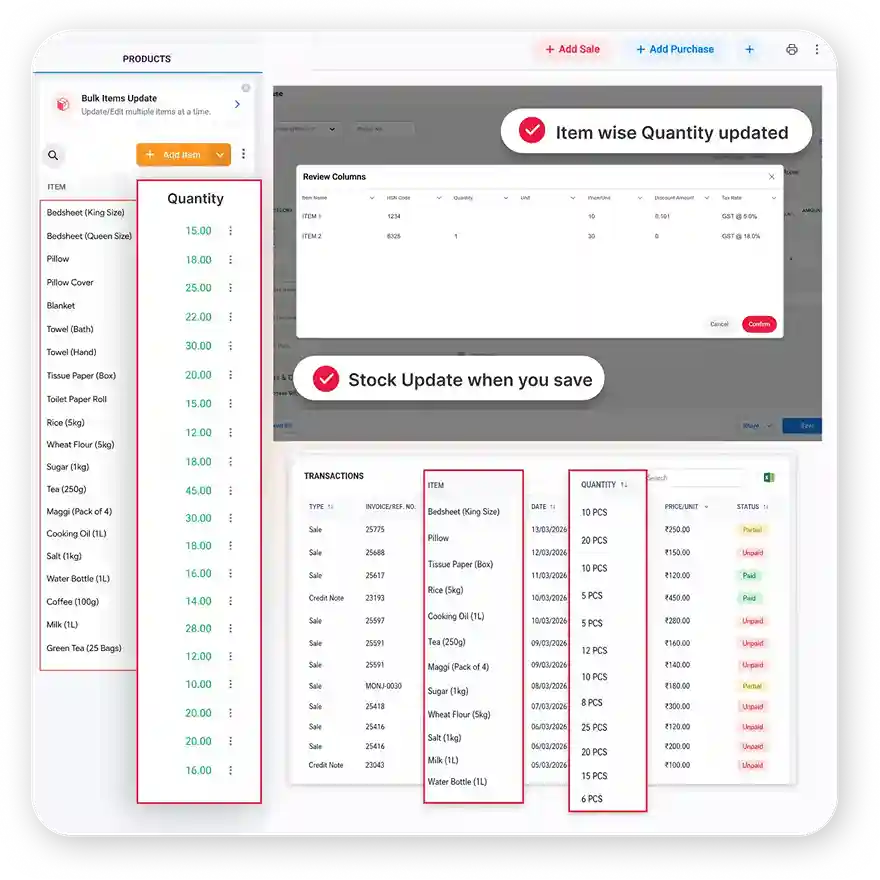
Update Stock When You Save a Purchase
Vyapar updates your stock as soon as you save a purchase entry, so you can see the updated quantities without adding them them manually.
- Automatic Stock Updates: Save the purchase entry to update stock quantities for the items recorded in the bill.
- Accurate Stock Records: Keep track of available items in your shop or warehouse with updated stock quantities.
- Better Stock Management: Use updated inventory records to check item availability and plan sales more easily.
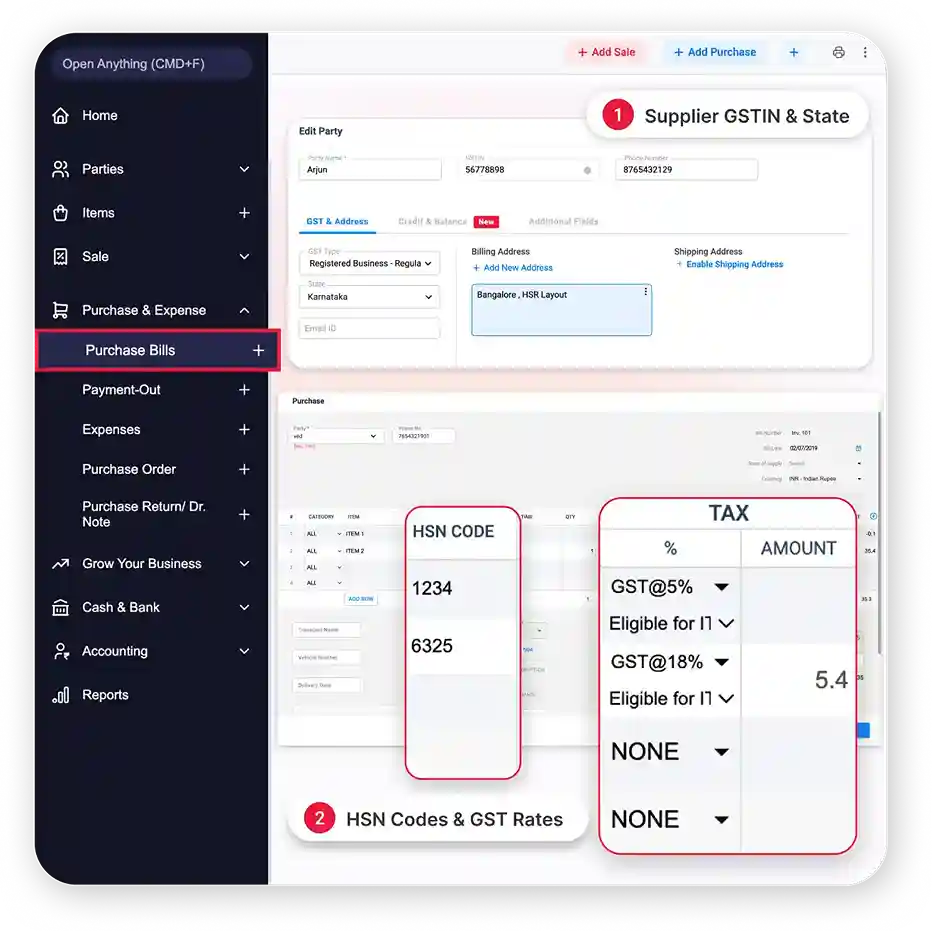
Save Time on GST Details in Purchase Bills
Entering GST details from every purchase bill takes time. Vyapar reads available details from supported bills, helping you record purchase information with less manual effort.
- GST Details from Bills: Capture details like supplier GSTIN, invoice number, HSN codes, and tax amounts.
- Check and Save: Review the extracted information and correct any mistakes before saving.
- Simpler GST Record-Keeping: Keep purchase records organised for easier GST return and Input Tax Credit (ITC) reviews. Bill scanning alone does not confirm ITC eligibility.
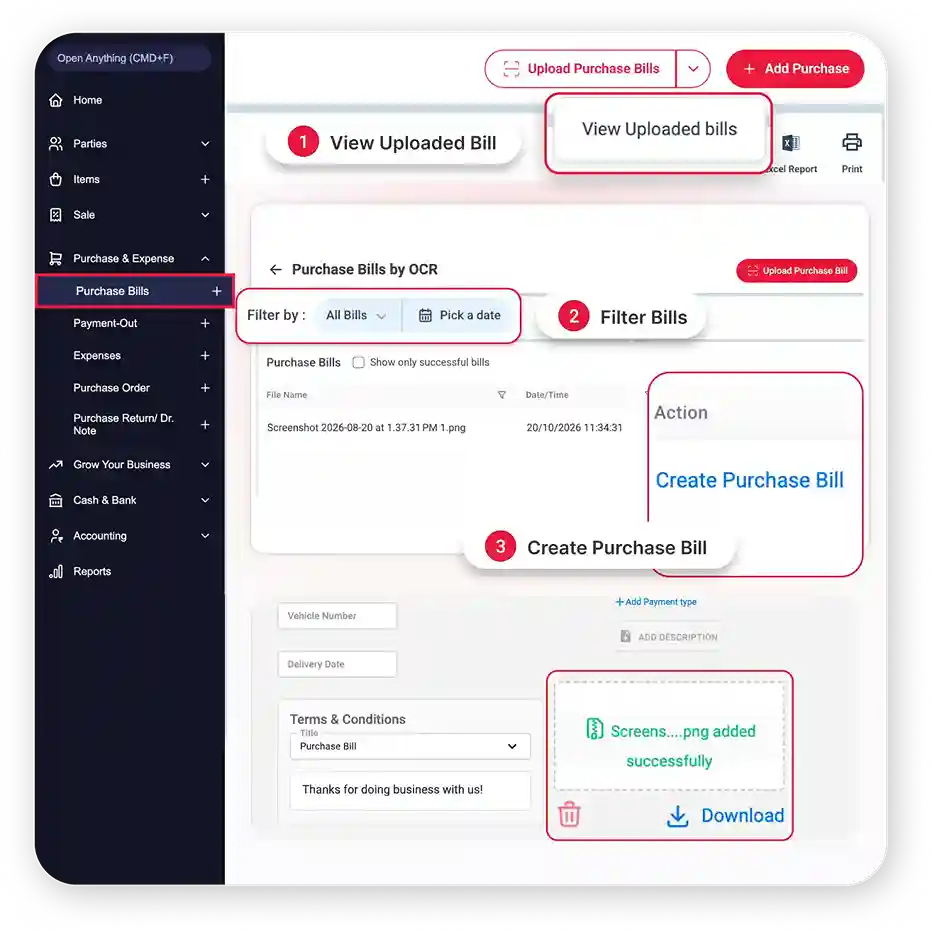
Review Bills and Keep Originals on Record
You don’t have to record every bill as soon as it is uploaded. Vyapar keeps uploaded bills ready on the Purchase Bills by OCR screen.
- Track Uploaded Bills: View file names, upload dates, and processing status, and filter bills by date or show only processed ones.
- Record When Ready: Open any uploaded bill and create its purchase entry when it suits you, so no bill is left unrecorded.
- Original Bills Attached: Vyapar can attach the scanned image or PDF to the purchase entry, making it easy to refer back later.
Two Ways to Upload Purchase Bills in Vyapar
Scan purchase invoices directly from your Windows computer, or turn your phone into a bill scanner that sends bills to the desktop app.
Upload a Purchase Bill From Your Computer
This option is useful for turning a PDF invoice into a purchase entry, whether your supplier emailed it or it’s already saved on your computer.
Follow these steps:
- Open Vyapar on your Windows computer and go to Purchase & Expense → Purchase Bills.
- Click Upload Bill in the top-right corner. No purchase bills yet? Click Add Purchase and use Upload Bill at the bottom left.
- Select Upload From Desktop and choose your purchase bill PDF or image.
- On the Review Columns screen, check that item name, HSN code, quantity, unit, price, and tax rate match the correct fields.
- Click Confirm to fill in the purchase entry.
- Check the supplier details, invoice date, bill number, items, and tax amounts, then click Save.
Your purchase is recorded, and stock quantities are updated according to the saved entry.
Upload a Purchase Bill Using Your Phone
This option is handy when you receive a paper bill with a delivery. Scan it with your phone using a QR code, without installing the app or logging in.
Follow these steps:
- Open Vyapar on your Windows computer, click Upload Purchase Bills and select Import From Mobile.
- Scan the QR code shown on your screen using your phone’s camera to open the upload page. No app install or login needed.
- Choose Upload PDFs or Upload Images, or take a photo of the paper bill.
- Upload up to five files in one batch, with a maximum size of 10 MB per file.
- The bills appear in the desktop app’s Purchase Bills by OCR list.
- Return to your computer and click Create Purchase Bill to check and save each entry.
Staff receiving goods can easily send bills to the computer where purchases are recorded.
Experience the Speed and Accuracy
No more typing every purchase bill by hand. See how Vyapar’s AI invoice scanner reads supplier bills, fills in the purchase entry, and updates your stock once you save.
What Details Can Vyapar Read From a Purchase Bill?
Which Bill Formats Can You Upload?
Vyapar supports common types of purchase documents through its bill-upload workflow.
PDF Invoices
Upload digital invoices received by email or downloaded from supplier portals.
JPG and PNG Images
Upload photos or scanned images of printed purchase bills.
Photos Received on WhatsApp
Save the bill image to your phone or computer, then upload it.
Printed Bills and Cash Memos
Upload clear images of standard printed invoices and cash memos.
The quality of the original document can affect how accurately its details are read. Blurry photos, unclear text, and faded printing may need more manual checking.
Who Can Benefit From Purchase Bill Scanning?
Bill scanning software helps any business that receives supplier bills regularly and wants to record purchases and update stock with less manual entry.
Retail Shops & Kirana Stores
Manage daily supplier purchases with retail shop billing software that scans bills, captures item details, and reduces manual data entry.
Automobile Spare Parts Shops
Simplify spare parts inventory management by recording purchases of different parts, tracking quantities, and keeping HSN details organised.
Hardware Shops
From pipes and tools to screws and fittings, hardware billing software helps record supplier bills and maintain updated stock quantities.
Electrical & Electronics Dealers
Keep purchase records for cables, switches, fans, and appliances organised with electrical billing software that reduces repetitive bill entry.
Wholesalers
Handle large supplier invoices more easily with wholesale inventory software that captures multiple line items for review before saving purchases.
Distributors
Manage frequent deliveries and purchases from different suppliers with distributor billing software that helps record incoming goods and track available stock.
Hear What Business Owners Say About Vyapar Invoice Scanning (OCR) Software
Real experiences from businesses using Vyapar every day.
“Uploading bil from image is game changer for me. Not need to update purchase bill manually. Just click photo upload and done.
Make some more automation, love this”
– Source: Trustpilot
“Streamlined Billing with Time-Saving OCR. It makes the process of managing purchases and updating stock information extremely efficient. Previously, I had to manually input each purchase detail such as item name, quantity, price, and units, which was not only time-consuming but also prone to errors.”
– Source: G2
“OCR feature is just awesome. Using vyapar app for a while now. Recently they updated a feature where I can upload image of purchase bill and all stocks will be saved automatically. Loved this update. “
– Source: Trustpilot
Frequently Asked Questions
Find answers to common questions about Vyapar’s AI powered bill scanning software.
Upload a supplier’s bill as a PDF or image from your computer or phone. Vyapar’s OCR reads details such as items, quantities, prices, and GST, and fills them into a purchase entry. Review the entry, correct any errors, and save it to update your stock.
Yes. With the Import From Mobile feature, staff can scan the QR code shown in the Windows desktop app and open the upload page on their phone. They can upload a PDF or image without installing the Vyapar app or logging in on that phone.
The mobile upload workflow supports up to five PDF or image files per batch, with a maximum size of 10 MB per file. Each file is handled as a separate purchase bill.
In the desktop app, go to Purchase & Expense → Purchase Bills → View Uploaded Bills. You can check the status of uploaded bills and open a bill to create its purchase entry.
Check the Review Columns screen before confirming the upload. If a field such as HSN code, quantity, or tax rate is mapped incorrectly, select the correct field from the column dropdown and click Confirm.
Yes. Vyapar updates stock when you review the purchase entry and click Save. The recorded quantities are then added to your stock, so check the items and quantities before saving.
Yes. You can review the purchase entry and correct details such as item quantities, purchase prices, notes, and payment terms before saving it.
Scanning results depend on how clear the handwriting is. Printed invoices and clear digital documents are generally easier to read. Check handwritten bills carefully and correct any details that are not recognised properly.
Yes, an internet connection is required for the document-reading step in the current OCR workflow. Editing and saving the purchase entry may work offline once the information is available in the desktop app, depending on the supported features and your setup.
Still have questions?